
See every vehicle in your workshop or garage, what it costs, and when it’s back on the road.
The HORA Fleet Workshop & Garage Management System is an Excel template that follows each repair from the first fault report to release. Requests, work orders, technicians, parts, outside garages, inspections and downtime all feed one dashboard.
Microsoft Excel template. No macros, no subscription. Includes a filled demo file, a clean file for your own data, an SOP, a User Guideline and Technical Terms.
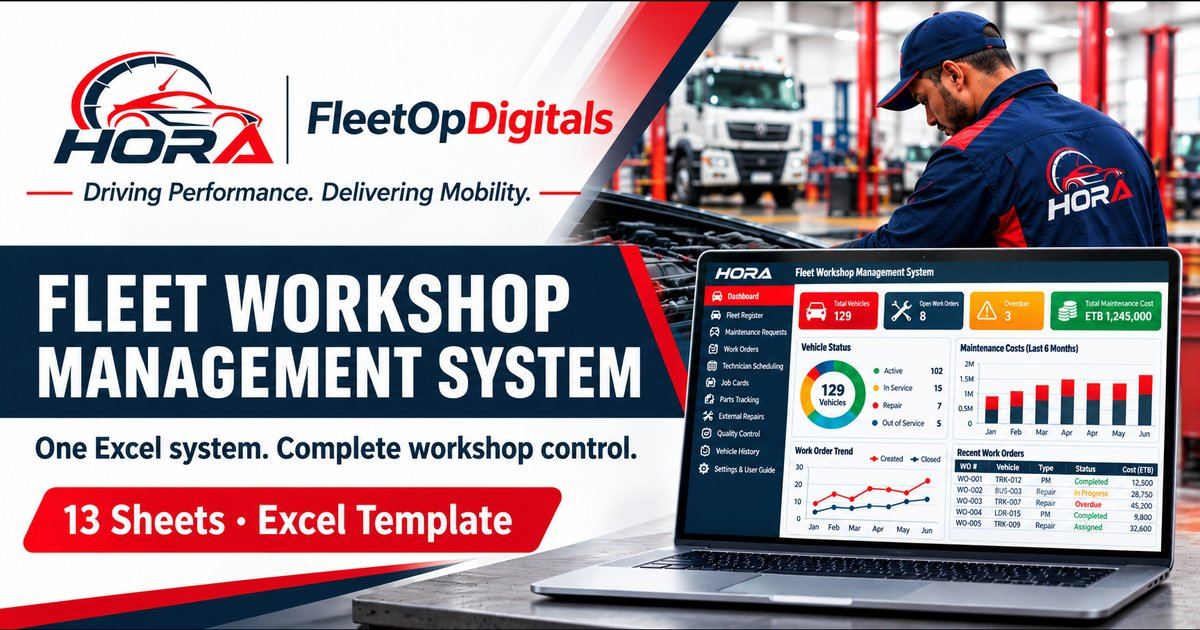
When repairs are tracked in scattered places, cost and time slip away.
A fault report gets lost. A quote waits for approval. A vehicle sits in the bay longer than planned. HORA puts the status and cost of every job in one place.
Scattered repair records
Requests, job notes, parts and garage invoices end up in different files, so one answer means opening several.
Costs that surface late
Labor, parts and outside invoices have to be added together before you know what a repair really cost.
No clear view of downtime
Without one record, it is hard to see which vehicles are waiting, who is working on them and when they return.
See the system working
Real screens from the demo workbook, filled with sample data. Select any image to enlarge it.
One repair, followed from fault to release
Each step lives on its own sheet and passes its data to the next. You type a vehicle or work order once; the rest fills in.
- Report the faultLog the request, set priority, approve or reject it.
- Open a work orderPick the vehicle. Registration and request details fill in.
- Schedule the jobBook technician and bay. Double bookings are flagged.
- Record the workDiagnosis, repair task, start and end time on the job card.
- Issue partsIssued minus returned gives quantity used and cost.
- Track outside garagesQuote, approval, invoice, payment and warranty.
- Inspect and releaseSafety check, road test, release sign-off, downtime.
- Close and reviewSet the status to Closed and read the dashboard.
13 sheets, each with one job
Dropdown lists, date checks and locked formulas keep the data clean, so the dashboard can be trusted.
- Dashboard
- 12 KPI cards, an 11-line alert panel, work order status, cost by repair type, fleet by vehicle type, a monthly trend and 4 charts.
- Fleet Register
- One row per vehicle: plate, type, make, model, year, chassis, fuel, department, odometer, registration and insurance expiry, next service and status. 200 slots, 150 planned.
- Maintenance Requests
- Fault reports with priority and approval. Links to the work order that fixes them.
- Work Orders
- The central repair record. Labor, parts, external cost, total cost, downtime and days open are pulled in automatically.
- Technician Schedule
- Technician availability, qualification and service bays, with a clash check for double bookings.
- Job Cards
- Diagnosis, repair task, technician, start and end time, labor hours and signature.
- Parts Consumption
- Part number, quantity issued and returned, unit cost and total cost per work order.
- External Repairs
- Garage quotes, approvals, invoices, payment status, warranty dates and an invoice-versus-quote check.
- Quality & Downtime
- Inspection result, safety check, road test, release authorisation and downtime start and end.
- Vehicle History Report
- Pick a vehicle and see its details, work orders, repair cost and downtime on one printable page.
- Job Card Print
- Pick a work order and print a clean job card for the workshop floor.
- Settings & Lists
- Your labor rate, currency, alert windows, fleet capacity, reporting year, organisation name, and every dropdown list (technicians, garages, bays, repair types).
- README
- Quick start, how costs and KPIs are calculated, colour code and a backup procedure.
Alerts that tell you where to look
The dashboard checks your data every time you open it and shows each alert as OK, Attention or Critical.
- Overdue work orders and critical jobs still open
- Failed inspections, and vehicles released after a failed check
- External quotes waiting for approval, and invoices above quote
- Registration and insurance expired or expiring
- Services overdue or due soon
- Warranties expiring soon
- Technician or bay clashes in the schedule
How cost is calculated
+ parts cost + external invoice
= total cost per work order
You set the labor rate and currency once in Settings. Every work order, vehicle report and dashboard total follows.
What you receive
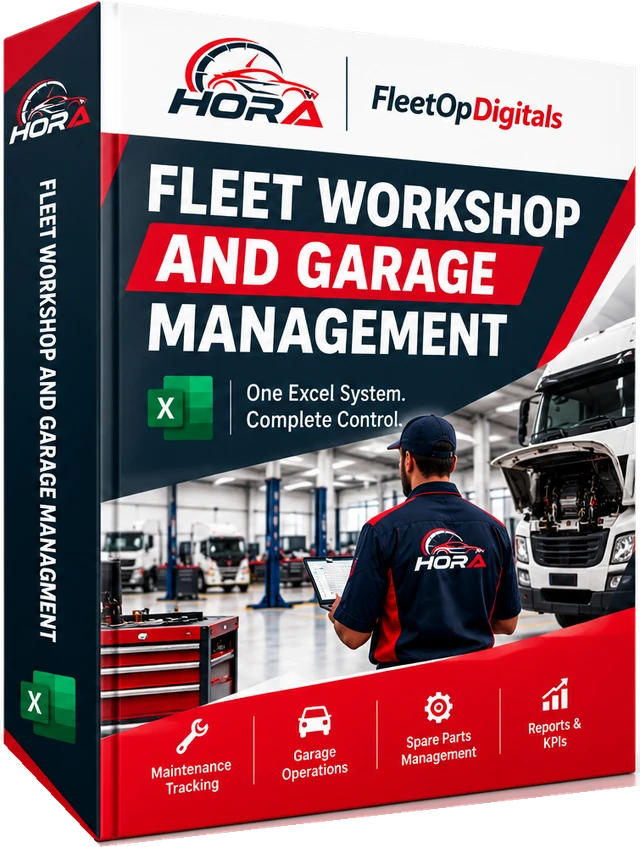
One Excel system, delivered as two workbooks and three guides. Open the demo to see it working, then start on your own fleet with the clean file.
Clean production workbook
The empty system, ready for your fleet. Start entering vehicles on day one.
- Fleet Register with 200 vehicle slots
- 1,000 rows on every other register
- All dropdowns, formulas and alerts in place
Demo workbook with sample data
The same system filled with fictional records so you can see it working before you enter your own.
- 129 sample vehicles
- About 150 sample work orders
- Sample requests, parts, garages and inspections
Documentation included
An SOP, a User Guideline and Technical Terms come with the workbooks, so your team can adopt the system and run it the same way every day.
SOP
The ten-step procedure from fault report to closed work order, including the rework loop when a quality check fails.
User Guideline
A guide to all 13 sheets, with data rules, colour code and a backup procedure.
Technical Terms
Plain-language definitions of every term on every sheet, plus how costs, KPIs and alerts are calculated, with a worked example.
Built for workshops and garages that run their own fleet
- Transport and bus operators with an in-house workshop
- Companies running trucks, pickups, vans and sedans
- NGOs, hospitals and government fleets
- Workshop managers who want costs and downtime per vehicle
- Fleets of up to 150 vehicles, with room to 200
- Buses, minibuses, special-purpose vehicles and motorcycles
Questions before you buy
Are an SOP and user guide included?
Yes. Along with the clean workbook and the demo workbook you receive an SOP, a User Guideline and Technical Terms. The SOP covers the ten-step workflow from fault report to closed work order, the User Guideline covers every sheet, and Technical Terms define every term used.
Can I share or resell the template?
No. Your purchase is a licence for use by one organisation. Copying, sharing, reselling or redistributing the workbooks, SOP, User Guideline, Technical Terms or images is not permitted.
Which software do I need?
Microsoft Excel. The file contains no macros.
Can I change the lists, labor rate and currency?
Yes. Technicians, garages, bays, repair types, statuses, labor rate, currency label and alert windows are all edited on the Settings & Lists sheet.
Are my formulas protected?
Yes. Sheets are protected without a password, so only input cells can be edited. You can add your own password before go-live. The README explains how to add rows if a register fills up.
Does it support more than 150 vehicles?
The Fleet Register has 200 vehicle slots. The other registers hold 1,000 rows each.
Are PivotTables included?
The dashboard uses formula-driven summaries that update instantly. The registers are laid out so you can build your own PivotTables.
How do I back up my data?
The README includes a backup procedure: daily saves, dated copies after each reporting cycle, an off-site copy each week and a quarterly restore test.
What happens after I buy?
You are taken to the Ye-Buna checkout. Delivery follows the steps on the product page there.
Get the HORA Fleet Workshop & Garage Management System
Clean production workbook, demo workbook, SOP, User Guideline and Technical Terms, ready to use in Excel.

Other Products & Professional Services
Other fleet tools and professional services are available on request.
Digital Products
- Complete Fleet Management Bundle
- Fleet Fuel Management
- Fleet Maintenance & Spare Parts Management
- Driver Management System
- Fleet Cost Ledger (Variable & Operational Costs)
Professional Services
- Fleet Management Consulting
- Automotive Consulting & Service Management
- Fleet Cost & TCO Analysis
- Online Driver Licensing Training
- EV & Mobility Advisory